

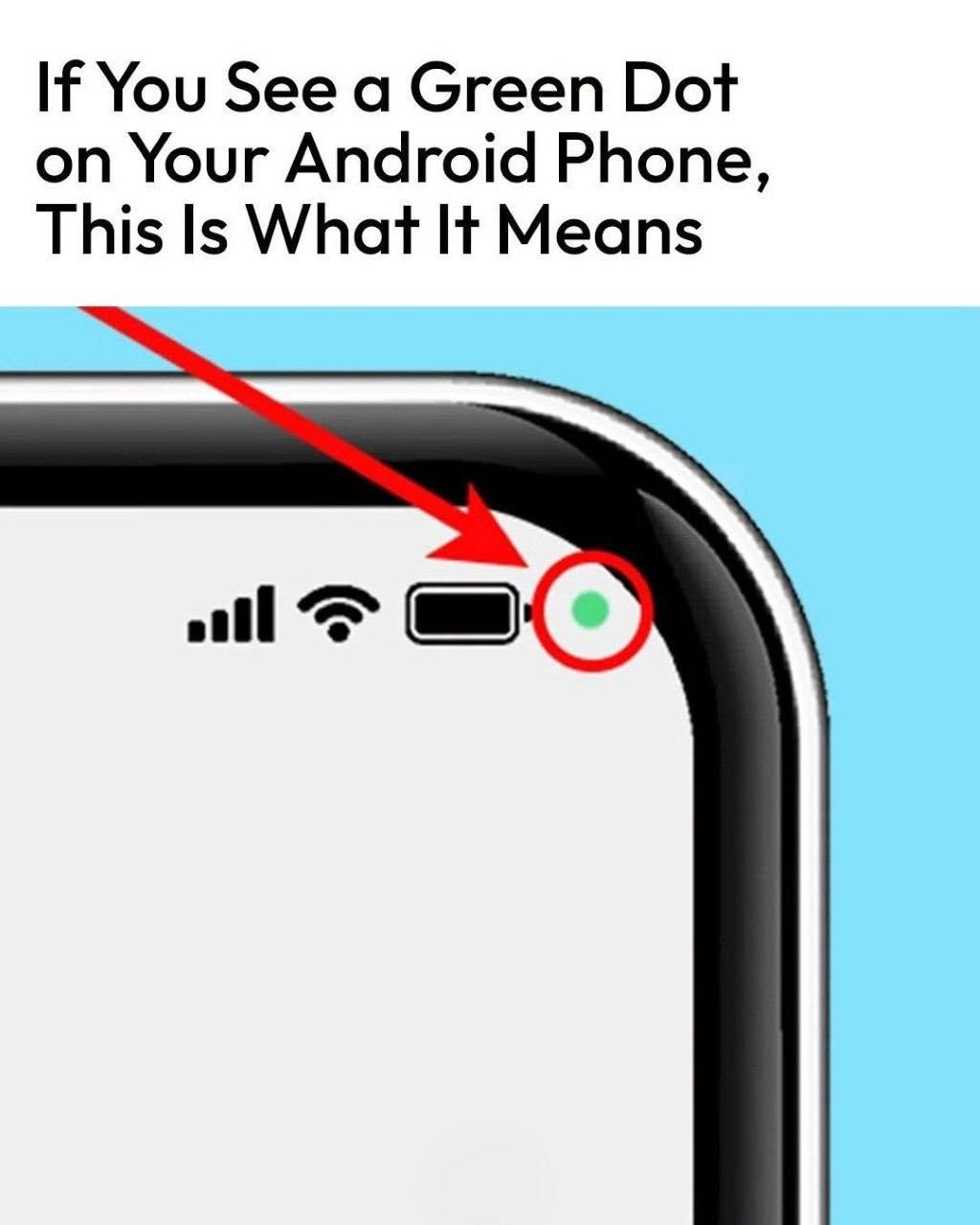


Modern smartphones come packed with advanced privacy features designed to give users complete visibility into how their personal data is being accessed. One of the most noticeable features introduced in Android 12 (and continued through modern Android operating systems) is the green privacy indicator dot in the top corner of your status bar.
While seeing a sudden icon pop up on your screen can cause temporary concern about spyware or background tracking, understanding how this safety feature works gives you total control over your device’s privacy.
Below, we break down what triggers the green dot, how to check which app is using your hardware, and how to manage app permissions step-by-step!
What the Green Indicator Dot Means
The green dot acts as a digital warning light for your phone’s physical hardware sensors. It automatically turns on whenever an active app accesses your:
-
Camera: Video calling apps, social media cameras, photo editors, or document scanners.
-
Microphone: Voice recorders, phone calls, assistant voice commands, or messaging apps sending voice notes.
Whenever an application opens your camera lens or listens through your microphone, Android immediately illuminates the green dot in your status bar to ensure no app can secretly record you in the background.
How to Check Which App Is Using Your Camera or Microphone
If you see the green dot appear unexpectedly when you aren’t using a camera or voice app, you can easily identify the culprit in seconds:
-
Swipe Down: Swipe down from the top of your screen to open your Quick Settings / Notification Shade.
-
Tap the Green Icon: At the very top of your notification panel, you will see a prominent green icon displaying a camera or microphone symbol.
-
View Active App: Tap the green icon to view the exact application currently using your sensor (e.g., “WhatsApp is using the camera”).
What to Do If an Unknown App Is Using Your Hardware
If the notification panel shows an app accessing your microphone or camera without your permission, follow these security steps:
Step 1: Revoke Permissions Immediately
-
Open your phone’s Settings app.
-
Go to Privacy $\rightarrow$ Permission Manager.
-
Tap Camera or Microphone.
-
Select the suspicious app and change its permission setting to “Don’t Allow” or “Ask Every Time.”
Step 2: Uninstall Unwanted or Suspicious Apps
If the app accessing your sensors is unfamiliar or suspicious, hold down the app icon on your home screen and select Uninstall right away.
Conclusion
The green dot on your Android phone is a powerful privacy defense feature designed to protect your peace of mind. By knowing how to check active sensor permissions, you can ensure your camera and microphone are only running when you want them to!
Frequently Asked Questions (FAQ)
Is the green dot feature available on iPhones too?
Yes! Apple uses a similar visual indicator system on iOS: an orange dot indicates an active microphone, while a green dot indicates an active camera.
Can I turn off the green privacy dot entirely?
No. Because the green dot is a core system security feature engineered to prevent unauthorized surveillance, Google does not allow users to disable the indicator in Android settings.